
Shatter Shell is a keyboard-driven layer for GNOME Shell which allows for quick and sensible navigation and management of windows. The core feature of Shatter Shell is the addition of advanced tiling window management — a feature that has been highly sought within our community. For many — ourselves included — i3wm has become the leading competitor to the GNOME desktop.
Tiling window management in GNOME is virtually nonexistent, which makes the desktop awkward to interact with when your needs exceed that of two windows at a given time. Luckily, GNOME Shell is an extensible desktop with the foundations that make it possible to implement a tiling window manager on top of the desktop.
Therefore, we see an opportunity here to advance the usability of the GNOME desktop to better accommodate the needs of our community with Shatter Shell. Advanced tiling window management is a must for the desktop, so we've merged i3-like tiling window management with the GNOME desktop for the best of both worlds.
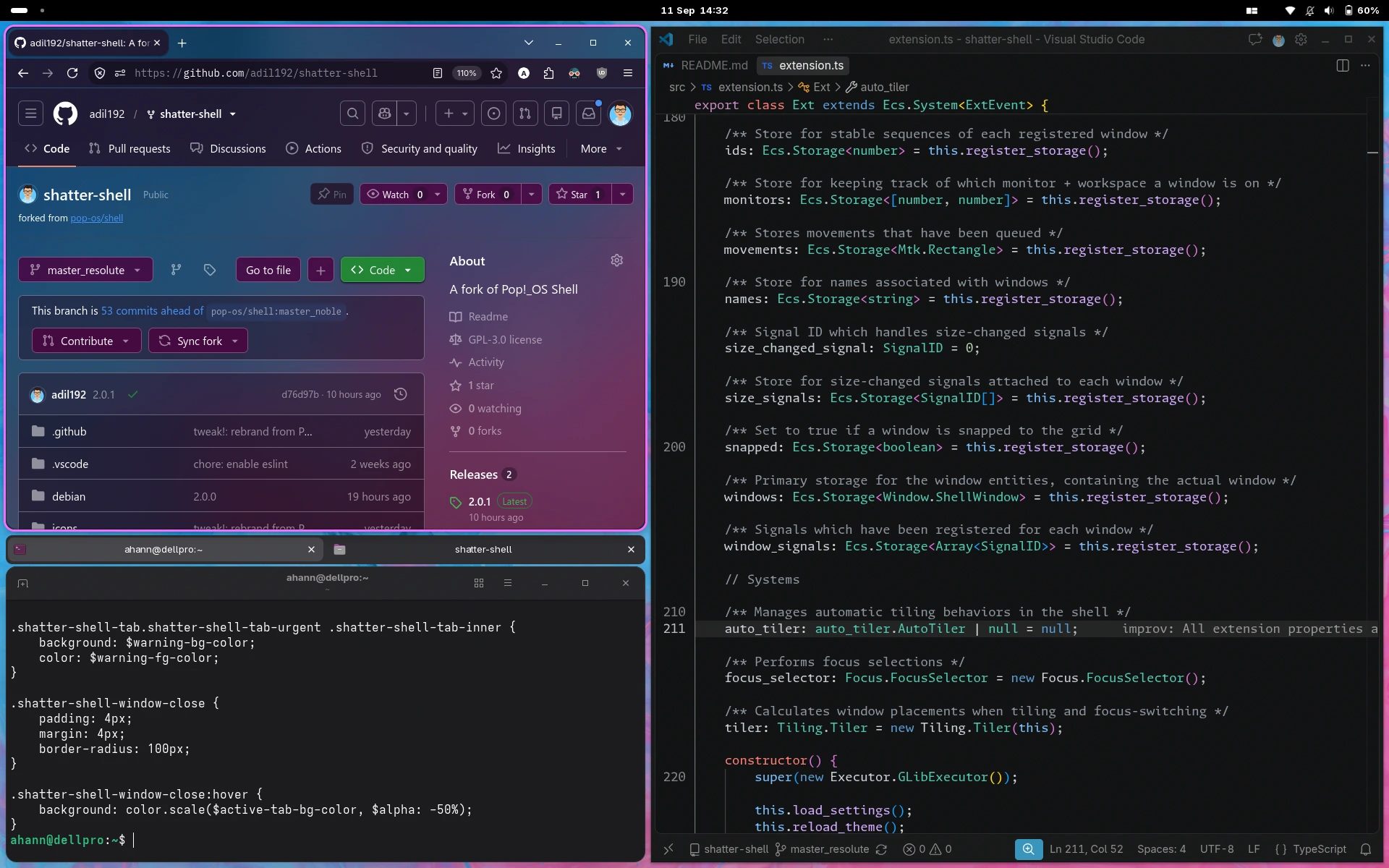
This is a fork of the original pop-os/shell repo.
I'm working on this just for fun: there isn't too much interesting here from a user perspective.
For a summary of this fork's changes, see Releases.
Use the branch corresponding to your GNOME Shell version (git checkout branch_name):
- GNOME 3.36 through 41: Use the
master_focalbranch. - GNOME 42 through 44: Use the
master_jammybranch. - GNOME 45: Use the
master_manticbranch. - GNOME 46 through 49: Use the
master_noblebranch. - GNOME 50+: Use the
master_resolutebranch.
GNU Make and Node.js are also required to build the project.
Proper functionality of the shell requires modifying GNOME's default keyboard shortcuts. For a local installation, run make local-install.
If you want to uninstall the extension, you may invoke make uninstall, and then open the "Keyboard Shortcuts" panel in GNOME Settings to select the "Reset All.." button in the header bar.
Note that if you are packaging for your Linux distribution, many features in Shatter Shell will not work out of the box because they require changes to GNOME's default keyboard shortcuts. A local install is necessary if you aren't packaging your GNOME session with these default keyboard shortcuts unset or changed.
Shatter Shell is included in the Terra community repo.
# Add the Terra repo if you haven't already
sudo dnf install --nogpgcheck --repofrompath 'terra,https://repos.fyralabs.com/terra$releasever' terra-release
# Uninstall Pop Shell if you have it
sudo dnf remove gnome-shell-extension-pop-shell
# Install Shatter Shell
sudo dnf install gnome-shell-extension-shatter-shellFeatures that are shared between stacking and auto-tiling modes.
These are key to many of the shortcuts utilized by tiling window managers. This document will henceforth refer to these keys as <Direction>, which default to the following keys:
LeftorhDownorjUporkRightorl
Super+q: Close windowSuper+m: Maximize the focused windowSuper+,: Minimize the focused windowSuper+Esc: Lock screenSuper+f: FilesSuper+e: EmailSuper+b: Web BrowserSuper+t: Terminal
This mode is activated with
Super+Return.
Window management mode activates additional keyboard control over the size and location of the currently-focused window. The behavior of this mode changes slightly based on whether you are in auto-tile mode, or in the default stacking mode. In the default mode, an overlay is displayed snapped to a grid, which represents a possible future location and size of your focused window. This behavior changes slightly in auto-tiling mode, where resizes are performed immediately and overlays are only shown when swapping windows.
Activating this enables the following behaviors:
<Direction>- In default mode, this will move the displayed overlay around based on a grid
- In auto-tile mode, this will resize the window
Shift+<Direction>- In default mode, this will resize the overlay
- In auto-tile mode, this will do nothing
Ctrl+<Direction>- Selects a window in the given direction of the overlay
- When
Returnis pressed, window positions will be swapped
Shift+Ctrl+<Direction>- In auto-tile mode, this resizes in the opposite direction
O: Toggles between horizontal and vertical tiling in auto-tile mode~: Toggles between floating and tiling in auto-tile modeReturn: Applies the changes that have been requestedEsc: Cancels any changes that were requested
When not in window management mode, pressing Super + <Direction> will shift window focus to a window in the given direction. This is calculated based on the distance between the center of the side of the focused window that the window is being shifted from, and the opposite side of windows surrounding it.
Switching focus to the left will calculate from the center of the east side of the focused window to the center of the west side of all other windows. The window with the least distance is the window we pick.
Gaps improve the aesthetics of tiled windows and make it easier to grab the edge of a specific window. We've decided to add support for inner and outer gaps, and made these settings configurable in the extension's popup menu.
This is the default mode of Shatter Shell, which combines traditional stacking window management, with optional tiling window management features.
In this mode, displays are split into a grid of columns and rows. When entering tile mode, windows are snapped to this grid as they are placed. The number of rows and columns are configurable in the extension's popup menu in the panel.
An optional feature to improve your tiling experience is the ability to snap windows to the grid when using your mouse to move and resize them. This provides the same precision as entering window management mode to position a window with your keyboard, but with the convenience and familiarity of a mouse. This feature can be enabled through the extension's popup menu.
Disabled by default, this mode manages windows using a tree-based tiling window manager. Similar to i3, each node of the tree represents two branches. A branch may be a window, a fork containing more branches, or a stack that contains many windows. Each branch represents a rectangular area of space on the screen, and can be subdivided by creating more branches inside of a branch. As windows are created, they are assigned to the window or stack that is actively focused, which creates a new fork on a window, or attaches the window to the focused stack. As windows are destroyed, the opposite is performed to compress the tree and rearrange windows to their new dimensions.
Super+O- Toggles the orientation of a fork's tiling orientation
Super+G- Toggles a window between floating and tiling.
Due to the risky nature of plain JavaScript, this GNOME Shell extension is written in TypeScript. In addition to supplying static type-checking and self-documenting classes and interfaces, it allows us to write modern JavaScript syntax whilst supporting the generation of code for older targets.
Please install the following as dependencies when developing:
To test your changes while working on the shell, run make debug to start a nested GNOME session. See the documentation at https://gjs.guide/extensions/development/debugging.html.
Licensed under the GNU General Public License, Version 3.0, (LICENSE or https://www.gnu.org/licenses/gpl-3.0.en.html)
Any contribution intentionally submitted for inclusion in the work by you shall be licensed under the GNU GPLv3.